
Problem
Imagine you are working on a feature on Git branch feature1. You have made good progress on this feature, with major changes across the project.
As usual, in between, you got a “priority request” to verify an issue happening on main branch.
Now, to verify the issue, you need to check out main branch. But you can’t unless you discard or stash your changes.
This may break your current project setup and flow.
Is it possible to switch to another branch without disturbing the current working branch and project setup? Yes, it’s possible through Git Worktree.
Solution
With Git Worktree we can work on multiple branches at a time. We can check out various branches into chosen folders.
Creation of a Worktree
Suppose, we are working on branch feature1 and want to switch to main.
git worktree add ../my-site-main main
This will create a new folder my-site-main, and it will have main branch checked out.
We can open folder my-site-main in an editor separately without disturbing feature1 branch folder.
Similarly, we can check out multiple unique branches into corresponding new folders.
Listing Worktrees
We can list all worktrees created using
git worktree list
Eg,
➜  my-site-main git:(main) git worktree list
/Users/omkar/practice/git-test/my-site       b2fd1f2 [feature1]
/Users/omkar/practice/git-test/my-site-main  b2fd1f2 [main]
Under each worktree, we can independently commit and push changes to corresponding branch.
Removing a Worktree
Once we are done with worktree, we can remove it using
git worktree remove:
➜  my-site git:(feature1) ✗ git worktree remove /Users/omkar/practice/git-test/my-site-main
➜  my-site git:(feature1) ✗ git worktree list
/Users/omkar/practice/git-test/my-site  b2fd1f2 [feature1]
Removing a worktree will just remove the corresponding folder but won’t have any impact either on branch or on main repository’s working tree.
Best Practice
Rather than checking out worktrees into random folders, recommended practice is to have a base folder for your repository and check out worktrees within the base folder.
/Development/Project-X/
    |--- main-repo/ (The original clone)
    |--- feature1/ (Worktree 1)
    |--- feature2/ (Worktree 2)
Under the Hood
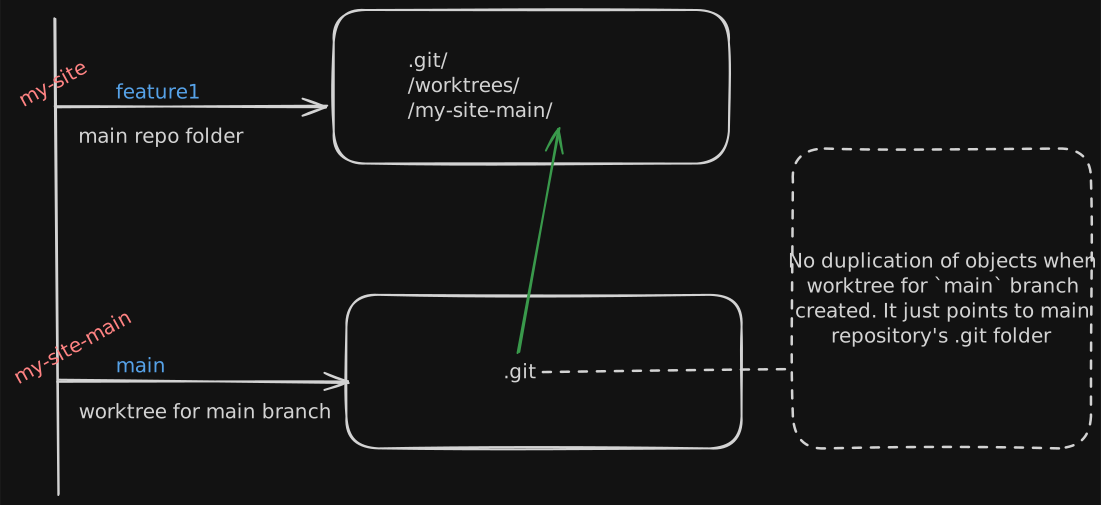
In Git, the files and folders of the currently checked-out branch are referred to as the Working Tree. Every time you add a worktree, Git creates a new working tree in the specific folder.
When you create a worktree for the main branch, the main repository’s .git folder creates a corresponding entry under
.git/worktrees/. This directory stores the state for that specific worktree, including its HEAD and staged changes.
The new working tree contains a .git file (instead of a folder) that points back to the worktree data in the main repository.
This ensures there is only one central database tracking all changes.
Note: Git generally prevents you from checking out the same branch in two different worktrees at once. Doing so could lead to corrupted states as both folders would try to update the same branch reference.
So, the next time you get a “quick request” to check an issue on a different branch, git worktree is your best friend.