Every day, we incur expenses, whether they’re large or small. It’s a wise practice to track our daily spending to assess our financial situation. To record these expenses, we often use tools like Excel sheets. However, manually entering data can be time-consuming. Wouldn’t it be convenient if we could simply send a brief message about our expenses to a messaging app like Telegram and have it automatically updated in an Excel sheet?
https://www.youtube.com/watch?v=FTPCNvR9G4M
We can automate this process and save time by integrating Telegram Bot, Google Sheet, and assistive AI.
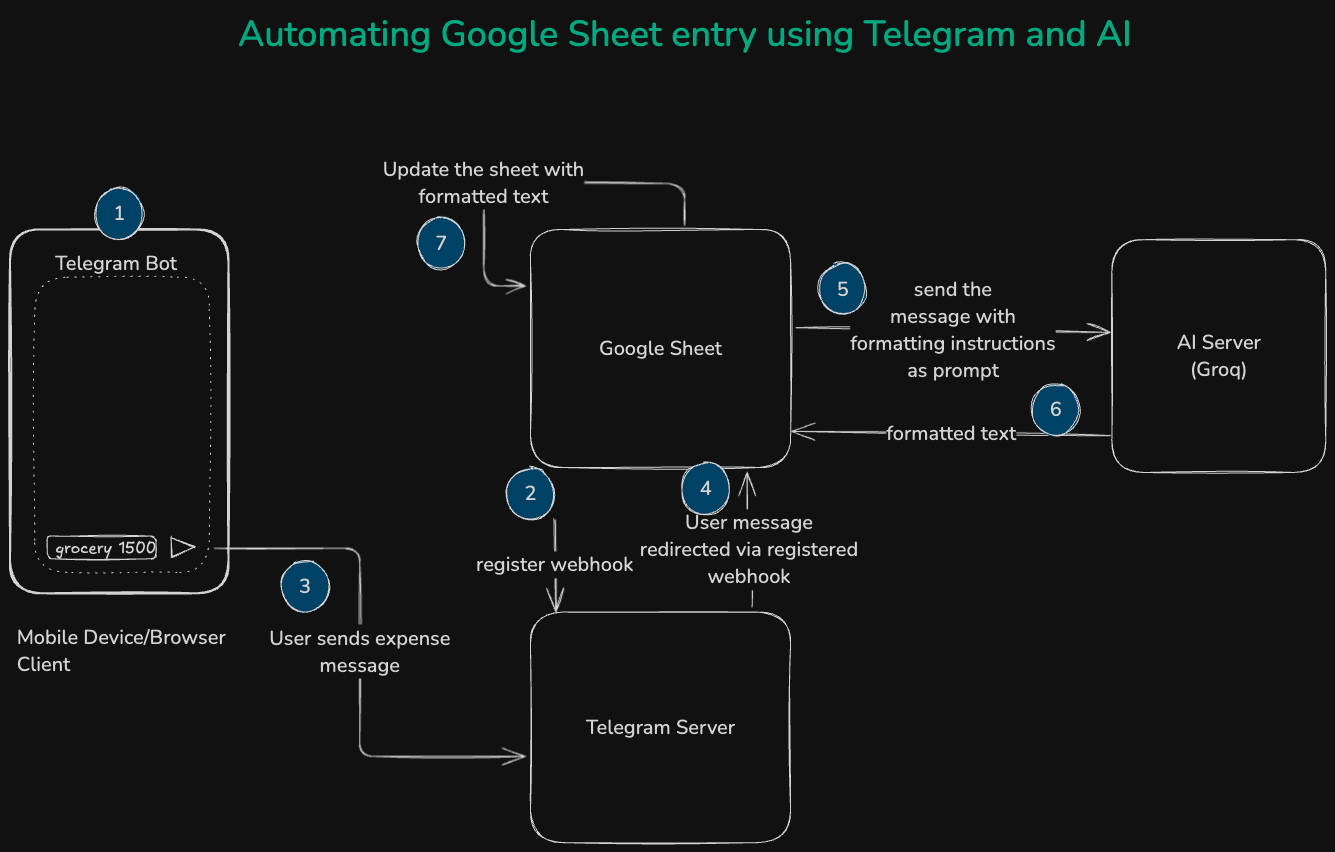
Automation Architecture
To achieve this, we’ll need to create a Telegram bot. A bot acts as a personal user assistant, automating the messaging process.
Typing @BotFather in Telegram will initiate the process of creating a bot. Details can be found at Bots: An introduction for developers.
Now, create a Google Sheet to make a connection with Telegram Server. Through App Script we can interact with Google Sheet through JS like script.
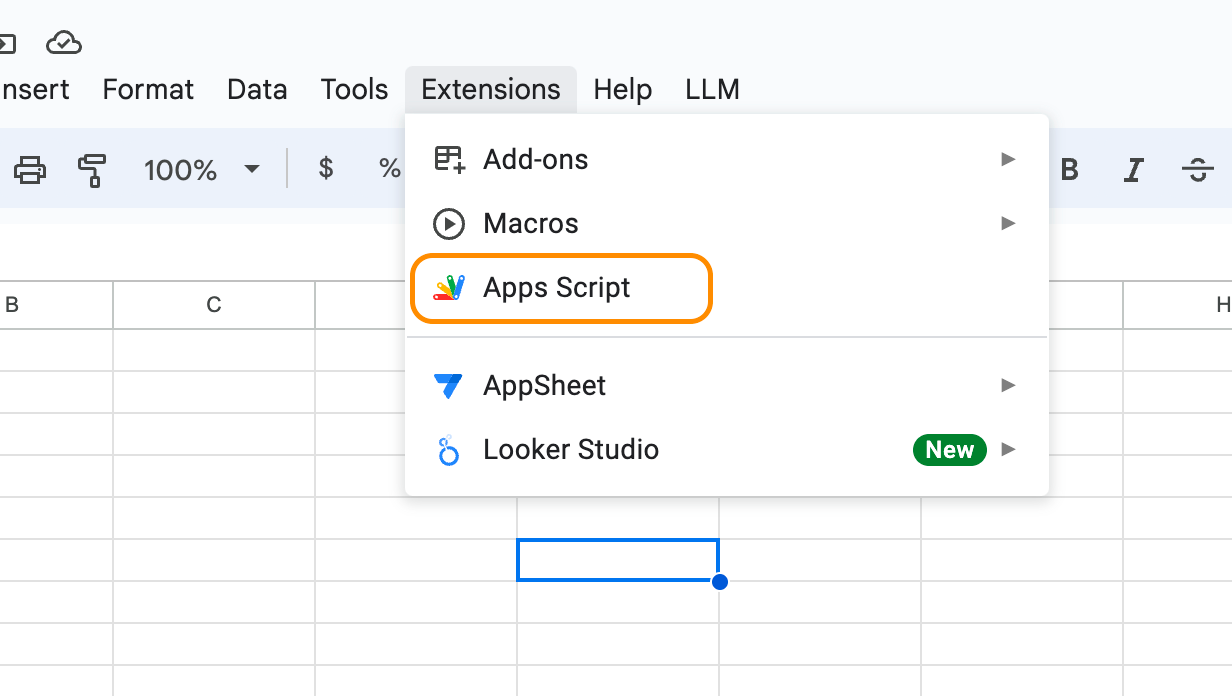
Next, we need to register Google Sheet with Telegram Bot Webhook as client. Webhook is the way to get push notifications rather than querying the server to pull the notifications. Whenever Telegram server receives a message from Bot, it will push the notification to registered Webhook clients.
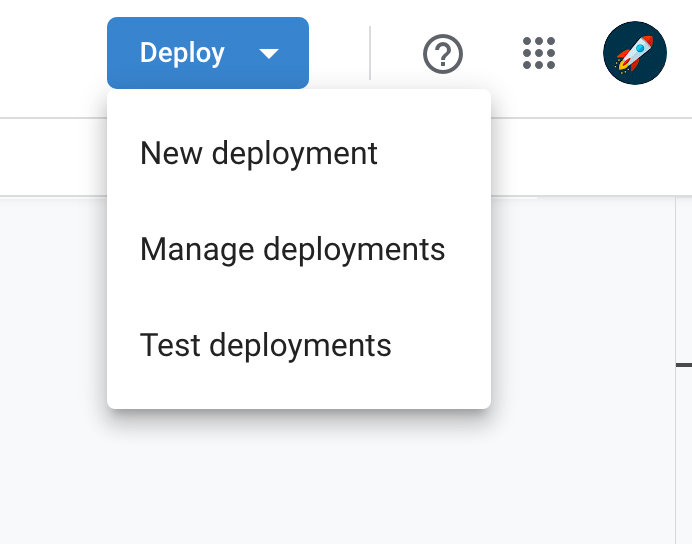
Webhooks work with a HTTP app. For this, we need to deploy Google Sheet as a web app.
For this, update the script with:
function doGet(e) {
return HtmlService.createHtmlOutput("Hi there");
}
Now, deploy it as a web app. Give the necessary permissions as asked during first deployment. On deployment pop up, select Anyone for Who has access field.
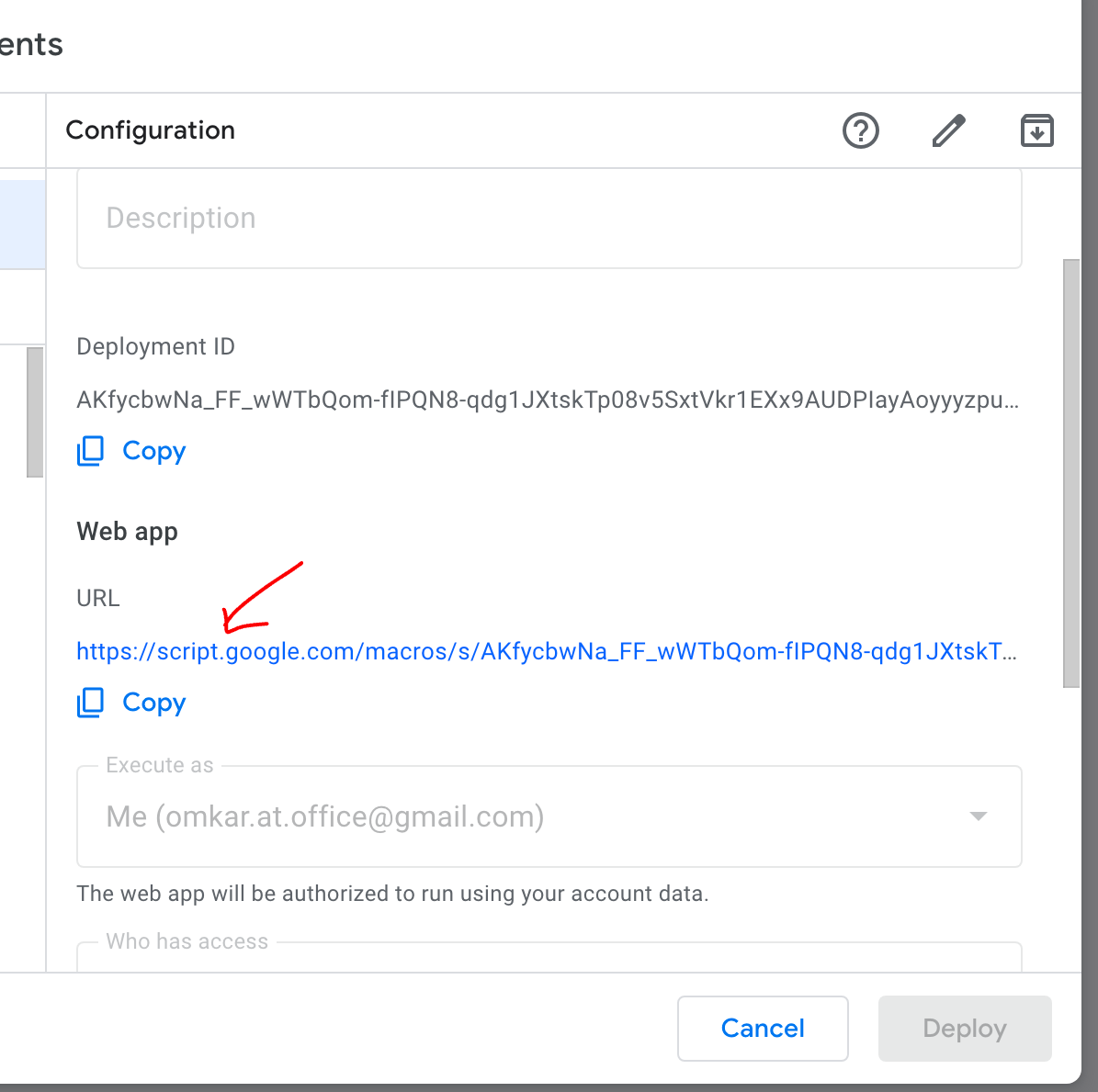
After successful deployment, copy the web app URL:
To register as Webhook:
function setWebhook() {
var url = telegramUrl + "/setWebhook?url=" + webAppUrl;
var response = UrlFetchApp.fetch(url);
Logger.log(response.getContentText());
}
Then run the function setWebhook.

Result should look like the following:
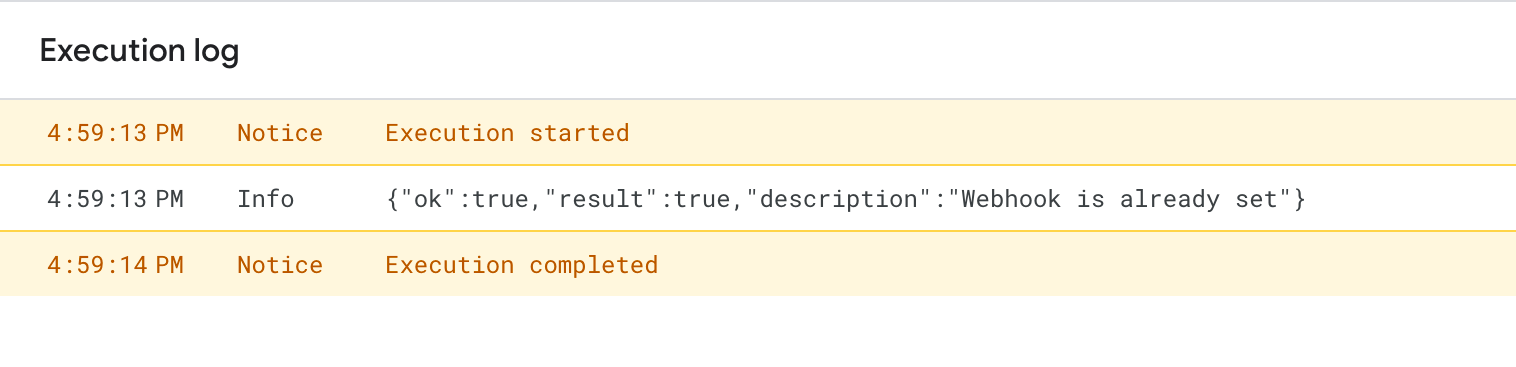
Logic to receive and process the push notifications from Telegram Bot should go in doPost function.
function doPost(e) {
try {
Logger.log("Received the request: "+e);
// this is where telegram works
var data = JSON.parse(e.postData.contents);
var text = data.message.text;
var id = data.message.chat.id;
var name = data.message.chat.first_name + " " + data.message.chat.last_name;
var date = data.message.date;
date = new Date(date * 1000);
date = date.toLocaleDateString();
var answer = LLM(date + " → " + text, "JSON document only in ISO/IEC 21778:2017 format. Don't prefix or suffix any other text.");

answer = JSON.parse(answer);
SpreadsheetApp.openById(ssId).getSheets()[0].appendRow([answer.Date,answer.Category,answer.Amount,answer.Comments,answer.Month]);
sendText(id, "Saved: "+answer.Amount+ " spent for "+ answer.Comments);
} catch(e) {
}
}
Telegram message structure and other API details can be found at Telegram Bot API.
We need to format the raw text entered by user. For this, we will take help of LLM hosted in Groq. Groq provides free service to try-out AI models. Here, I am using llama3–8b-8192 model from Meta, which is open source.
Get the API key from Groq at GroqCloud.
Now, we can make API call to model hosted in Groq server.
Here, we need to do a bit prompt engineering to confirm the set of instructions which can give realistic results.
function LLM(inputText, prompt, model = 'llama3–8b-8192', temperature = 0) {
const apiKey = GROQ_API_KEY;
if (!apiKey) {
throw new Error('OpenAI API key not set. Please visit the "LLM > Settings" menu to set your API key.');
}
const options = {
headers: {
"Content-Type": "application/json",
"Authorization": `Bearer ${apiKey}`
},
method: "POST",
payload: JSON.stringify({
"model": model,
"messages": [
{
"role": "system",
"content": SYSTEM_CONTENT
},
{
"role": "user",
"content": `${prompt}\n\n${inputText}`
}
],
"temperature": temperature
})
};
const response = UrlFetchApp.fetch("https://api.groq.com/openai/v1/chat/completions", options);
const json = JSON.parse(response.getContentText());
return json.choices[0].message.content;
}
We received formatted JSON result from LLM. Then, we update the Google Sheet by appending a new row of text with Date, Category of expense, Amount spent, more details on expense along with few relevant emojis suggested by LLM 😊.
Once you have the data in Google Sheet, you can infer meaning from it using excel skills.
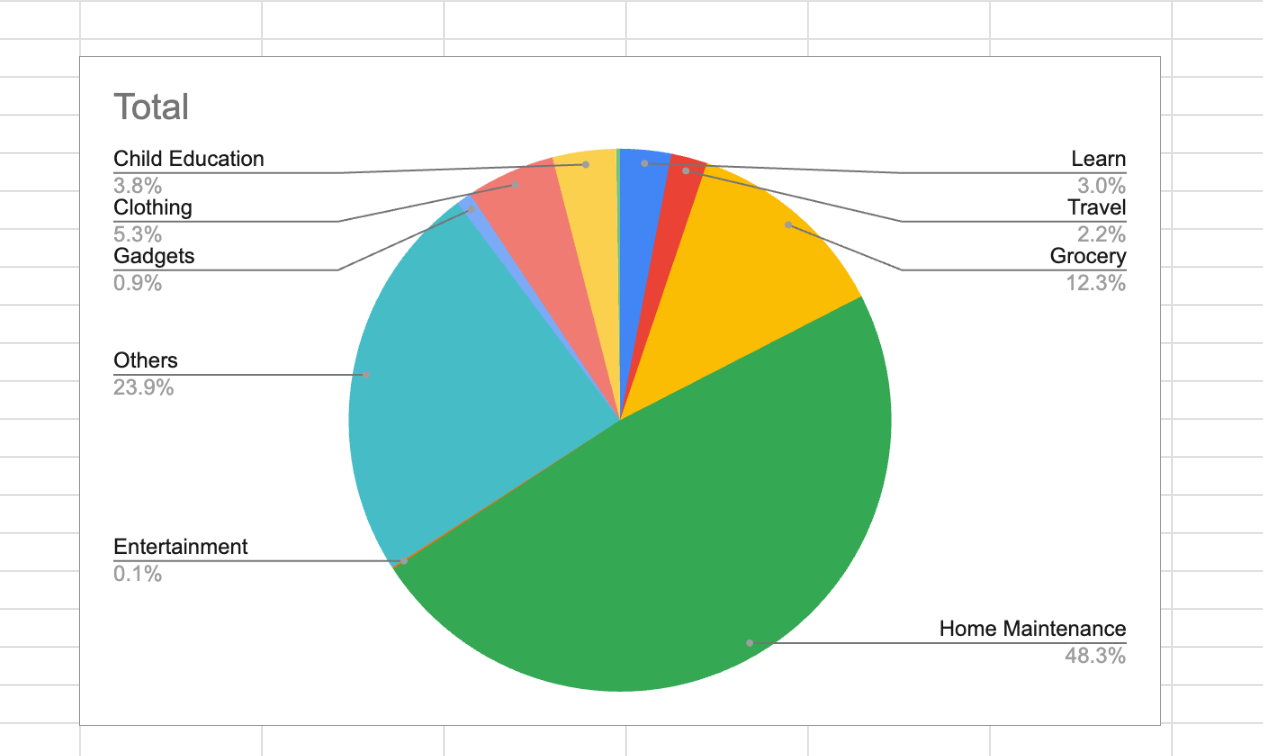
Please let me know if you have any comments or queries about this automation.
Full code shared at Omkar-Shetkar/expense-tracker