In the previous post, we successfully uploaded and viewed photos from S3. However, the application code was running locally. To make the application scalable, we need to run the application code on a server. In this post, we will move the application to AWS. By the end of this post, we will have a running cloud-native serverless application deployed on AWS.
Architecture
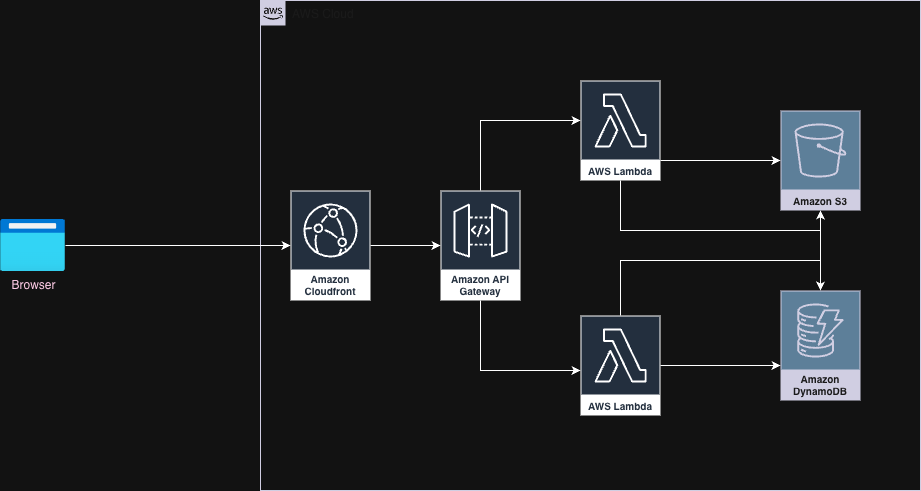
Amazon API Gateway and AWS Lambda are enhancements to the existing architecture.
AWS CloudFront - A secure and fast way to deliver content stored in S3.
Amazon API Gateway - An AWS service to create, deploy, and manage APIs. It acts as the front door for applications to access other AWS services. With this, we can enforce security, authorization, throttling, and monitoring for our APIs. So with API Gateway, we have a single place to manage all our APIs.
AWS Lambda - A serverless compute service that allows running application code without the need for server setup and maintenance. AWS Lambda executes code only when needed and scales automatically, from a few requests per day to thousands per second. This is cost-effective as we only pay for the compute time we consume.
Amazon S3 - An AWS service for object storage.
Amazon DynamoDB - A serverless AWS service for NoSQL database needs.
Control Flow
Typically, the control flow for uploading a photo is as follows:
- The user launches the Amazon CloudFront site hosting the
Momentsapp. - The user uploads a photo in the browser by calling the
/api/uploadsAPI. - Amazon API Gateway receives the upload request and redirects it to the appropriate AWS Lambda function that can handle the request.
- The AWS Lambda code for uploading the photo is executed. It uploads the photo to S3 and updates the metadata in DynamoDB.
- AWS Lambda responds with a response, which Amazon API Gateway redirects back to the CloudFront server.
- The user sees the response in the browser from CloudFront.
The control flow for viewing a photo via an API call follows a similar pattern.
To keep it simple, we will use the same S3 bucket to host our frontend and store uploaded photos.
Implementation
Full code can be found here.
Backend
Dependencies
We will use Spring Cloud Function to define Lambda functions for Upload and View operations.
To achieve this, add the following dependencies:
    <dependency>
        <groupId>org.springframework.cloud</groupId>
        <artifactId>spring-cloud-function-context</artifactId>
    </dependency>

    <dependency>
        <groupId>org.springframework.cloud</groupId>
        <artifactId>spring-cloud-function-adapter-aws</artifactId>
    </dependency>
Spring Cloud Function Adapter enables seamless integration of Spring Cloud Functions into serverless AWS services such as AWS Lambda.
Include the maven-shade-plugin to create a fat JAR file. This single JAR file will contain all the required dependencies to run the function in AWS Lambda.
    <plugin>
        <groupId>org.apache.maven.plugins</groupId>
        <artifactId>maven-shade-plugin</artifactId>
        <configuration>
            <createDependencyReducedPom>false</createDependencyReducedPom>
            <shadedArtifactAttached>true</shadedArtifactAttached>
            <shadedClassifierName>aws</shadedClassifierName>
        </configuration>
    </plugin>
Spring Cloud Functions
To upload and view photos, we define the uploadPhoto and listPhotos functions, respectively.
To upload a photo:
[BackendApplication]
    @Bean
    public Function<Map<String, Object>, UploadResponse> uploadPhoto(
            PhotoDynamoRepository repository,
            S3UploadService s3UploadService
    ) {
        return event -> {...
Here, the function receives a multipart file upload event that is Base64 encoded.
The event body is decoded to extract the file name, content type, and content.
The file is then uploaded to S3 using S3Template, and the metadata is updated in DynamoDB using DynamoDbTemplate.
To view photos:
[BackendApplication]
    @Bean
    public Function<Map<String, Object>, List<PhotoItem>> listPhotos(PhotoDynamoRepository repository) {
        return ignored -> repository.findAllNewestFirst();
    }
As you can see, REST Controllers are not required since the functions are directly invoked by API calls. Not having to define a dedicated server to host our REST APIs makes it serverless. However, it is necessary to define APIs and specify the corresponding functions to be executed at some place.
To achieve this, Lambda functions must be created and associated with APIs in API Gateway.
Create Lambda Functions
Let’s create Lambda functions for each of the functions:
- Go to Lambda –> Functions –> Create function.
- Function name:
uploadPhoto. - Runtime: Java 21.
- Architecture: x86_64.
Once the function is created, associate the source code with it.
To do this, build the backend code:
mvn clean package
This should produce a fat JAR ending with `-aws` under the `target` directory.

```bash
$ ls target/
backend-0.0.1-SNAPSHOT-aws.jar  backend-0.0.1-SNAPSHOT.jar  backend-0.0.1-SNAPSHOT.jar.original  classes  generated-sources  maven-archiver  maven-status
- Go to Lambda –> Functions –>
uploadPhoto.
Under Code –> Code source, uploadbackend-0.0.1-SNAPSHOT-aws.jar.
Under Configuration –> Environment variables, define the following environment variables: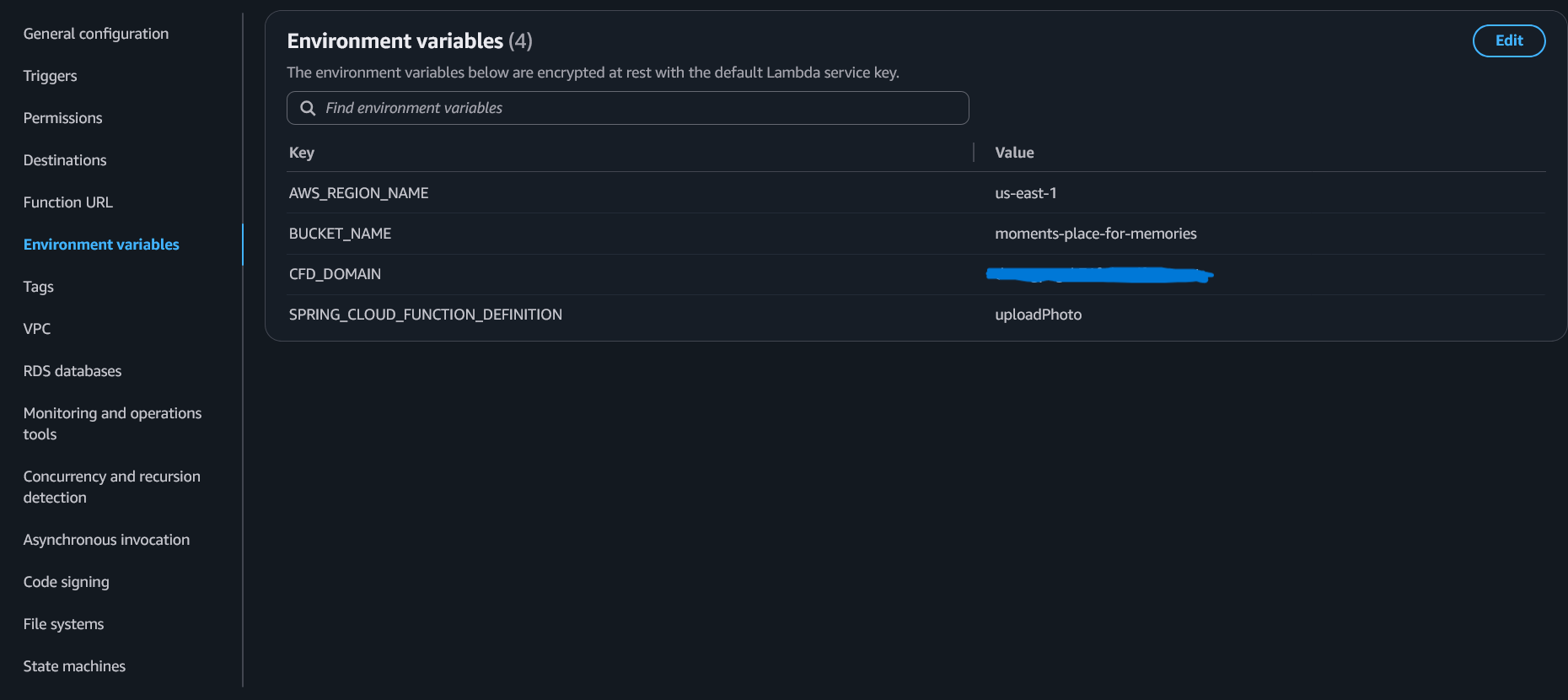
These will be accessed by ourapplication.yml.
Similarly, create the listPhotos function. For the source code, use the same JAR ending with -aws.
Create APIs in API Gateway
- Navigate to API Gateway –> Create API.
- Select HTTP API –> Build.
- Set the API name to
moments. - Add integrations for each of the Lambda functions created earlier:
- Click Add integration.
- Select Integration type as Lambda.
- Choose the appropriate AWS Region (e.g.,
us-east-1by default). - Select the Lambda function for upload.
- Similarly, add an integration for the view Lambda function.
- Configure routes:
- Method: POST
Resource path:/api/uploads
Integration target:uploadPhoto - Similarly, configure the route for viewing photos:
Method: GET
Resource path:/api/photos
Integration target:listPhotos
- Method: POST
- Leave the remaining configuration with default values.
- Review your configuration and click Create.
Update Permissions for Lambda
Lambda functions need access to S3 and DynamoDB. For this we need to update the permissions for each lambda. Each lambda is assigned a role, by default. We need to update the role with relevant permissions.
To update permissions for the uploadPhoto Lambda function:
- Navigate to Lambda –> Functions –>
uploadPhoto–> Configuration –> Permissions.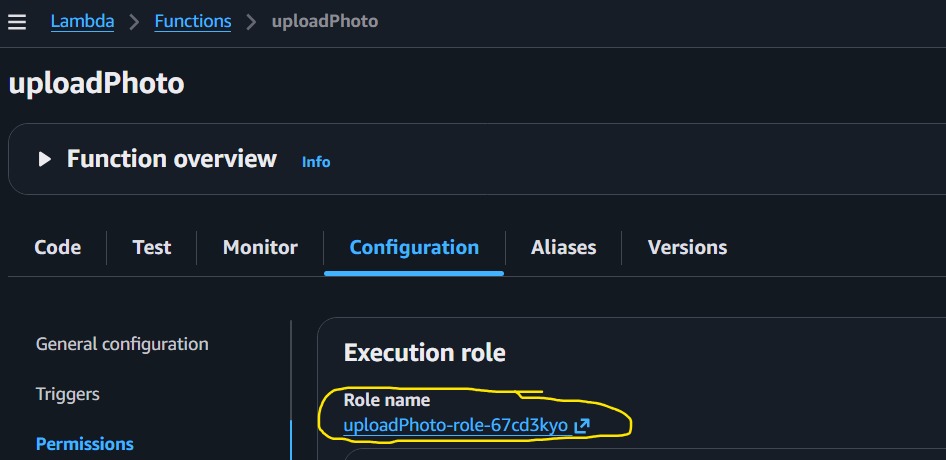
- Open the associated role.
- Under Permissions policies, update the permissions with the following JSON.
Ensure to replace the resource ARNs with those specific to your environment.
{
    "Version": "2012-10-17",
    "Statement": [
        {
            "Effect": "Allow",
            "Action": "logs:CreateLogGroup",
            "Resource": "arn:aws:logs:us-east-1:569894476820:*"
        },
        {
            "Effect": "Allow",
            "Action": [
                "logs:CreateLogStream",
                "logs:PutLogEvents"
            ],
            "Resource": [
                "arn:aws:logs:us-east-1:569894476820:log-group:/aws/lambda/uploadPhoto:*"
            ]
        },
        {
            "Effect": "Allow",
            "Action": [
                "s3:PutObject",
                "s3:GetObject"
            ],
            "Resource": "arn:aws:s3:::moments-place-for-memories/*"
        },
        {
            "Effect": "Allow",
            "Action": [
                "dynamodb:PutItem",
                "dynamodb:Query"
            ],
            "Resource": "arn:aws:dynamodb:us-east-1:569894476820:table/moments_photos"
        }
    ]
}
This will grant the Lambda function:
- Access to CloudWatch Logs for logging.
- Read and write access to S3.
- Read and write access to DynamoDB.
Similarly, update the role for lambda to view photos.
Update CORS in API Gateway
Since our frontend is accessed through the CloudFront Distribution and the API through API Gateway, we will encounter CORS restrictions. To address this, we need to configure CORS in API Gateway.
- Navigate to API Gateway –> APIs –> API: moments –> Cross-Origin Resource Sharing (CORS).
- Configure CORS with the following settings:
Access-Control-Allow-Origin: Set this to your CloudFront Distribution domain URL.
You can find your CloudFront domain on the CloudFront Distribution page.
Access-Control-Allow-Methods: Set this to
GET, POST.Access-Control-Allow-Headers: Set this to
content-type.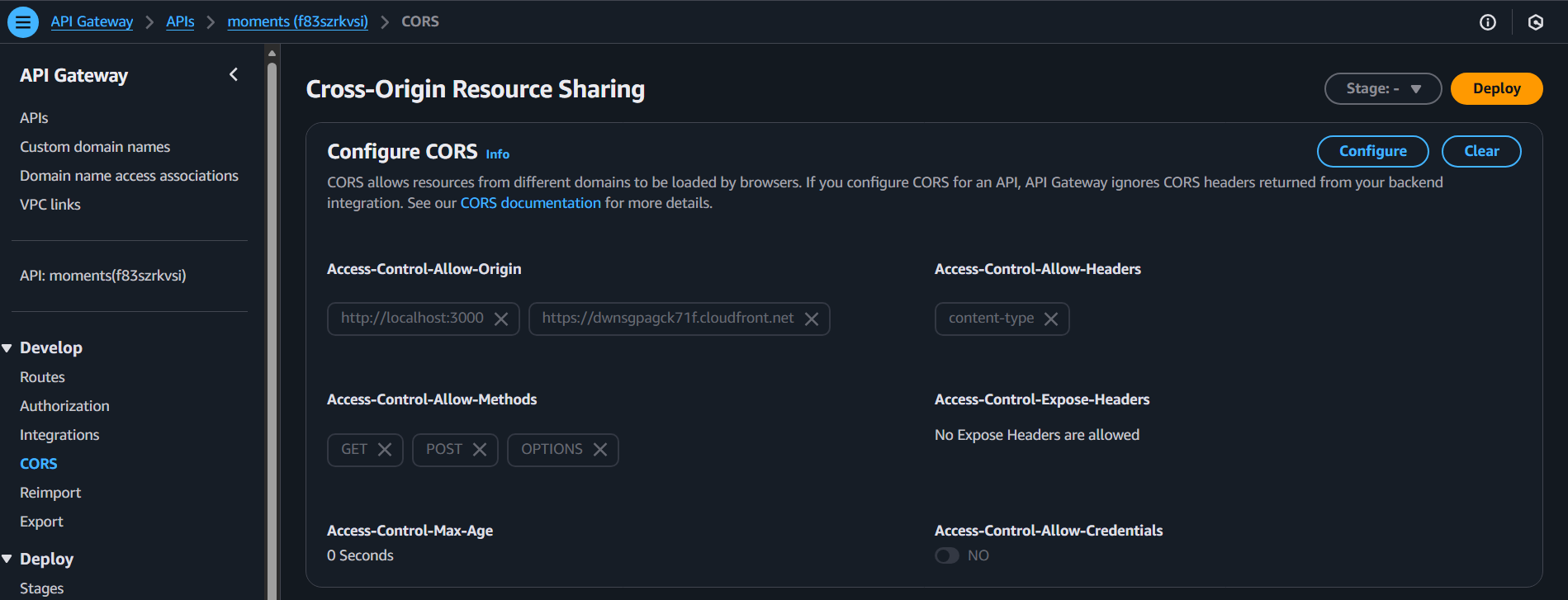
Frontend
Get API Gateway Invoke URL
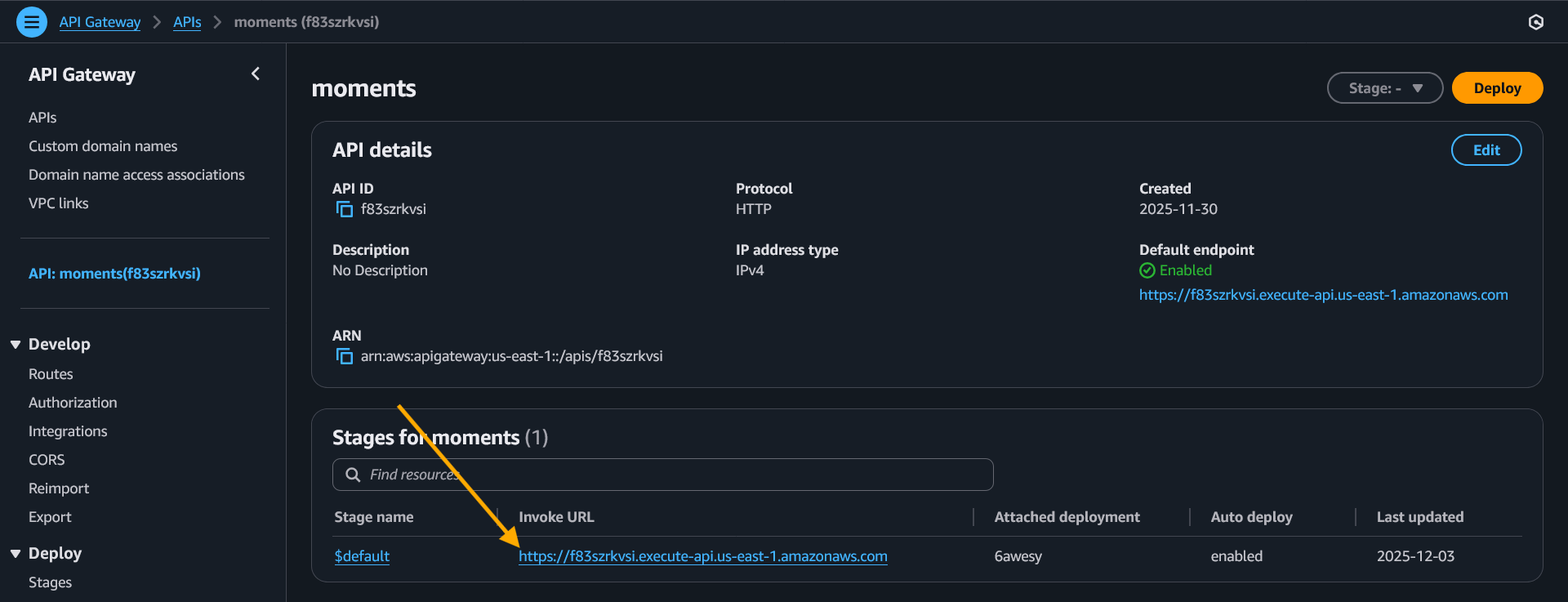
This URL will serve as the domain for our APIs.
Define it in App.js:
const API_BASE = "https://f83szrkvsi.execute-api.us-east-1.amazonaws.com";
...
const response = await fetch(`${API_BASE}/api/uploads`, {
    method: "POST",
    body: formData,
    // No manual Content-Type header; browser sets multipart boundary
});
Build the Frontend
Run the following command to build the frontend:
npm run build
Upload the contents of the build directory to the S3 bucket.
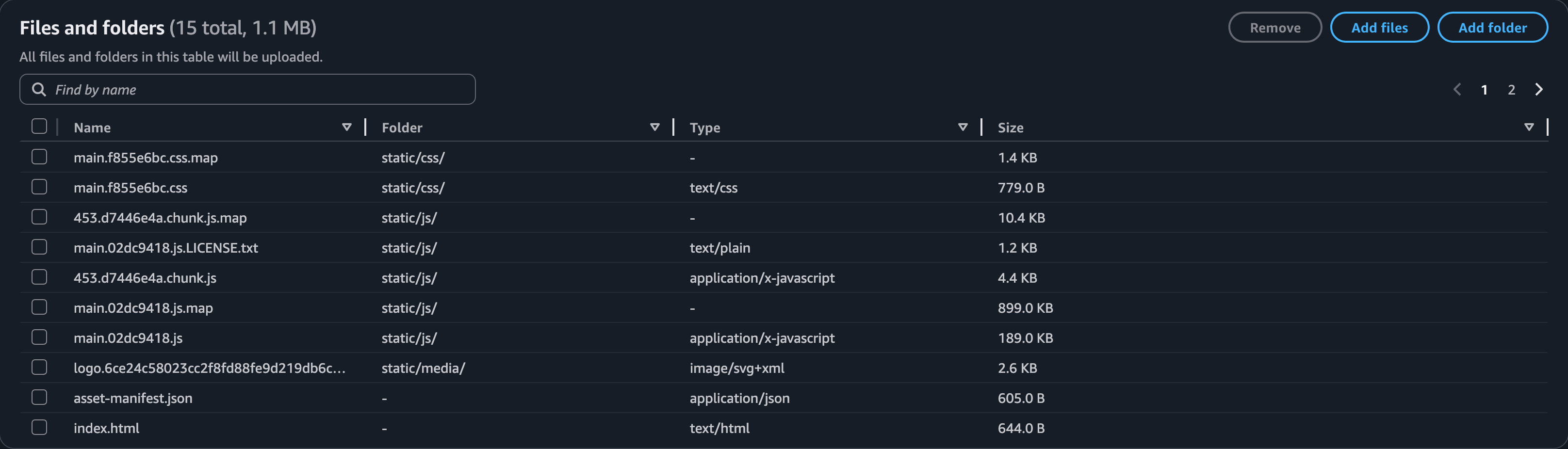
Ensure the S3 bucket has the following permissions set for your CloudFront Distribution.
{
    "Version": "2008-10-17",
    "Id": "PolicyForCloudFrontPrivateContent",
    "Statement": [
        {
            "Sid": "AllowCloudFrontServicePrincipal",
            "Effect": "Allow",
            "Principal": {
                "Service": "cloudfront.amazonaws.com"
            },
            "Action": "s3:GetObject",
            "Resource": "arn:aws:s3:::moments-place-for-memories/*",
            "Condition": {
                "ArnLike": {
                    "AWS:SourceArn": "arn:aws:cloudfront::569894476820:distribution/ESDOM4C9XNDNA"
                }
            }
        }
    ]
}
Run the Application
Now, we are ready to test our application.
To open the home page, use http://<your-cloudfront-domain>/index.html.
You should be able to upload and view photos.
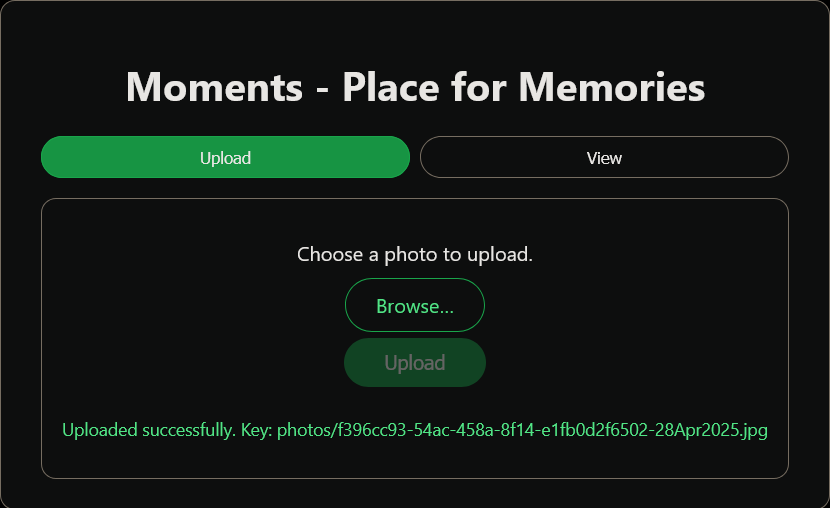 | 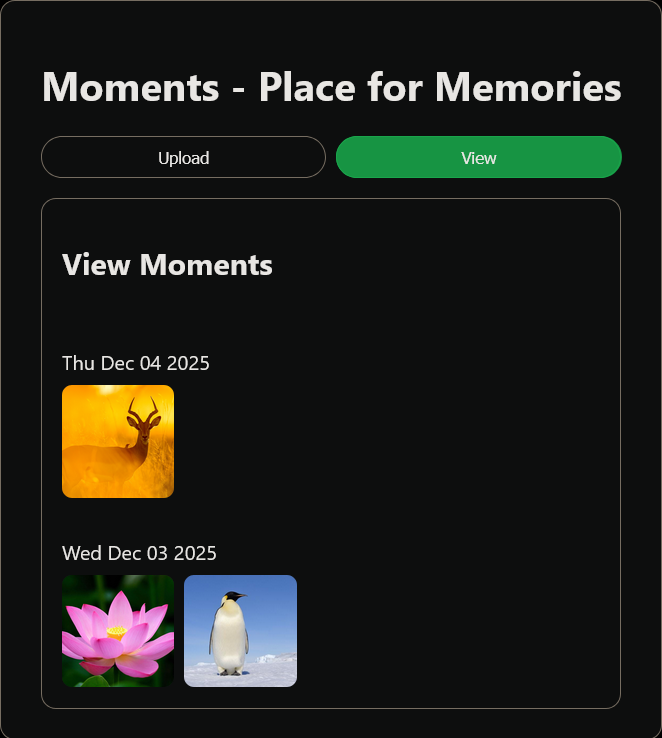 |
Congratulations 🎉! We have successfully deployed a cloud-native serverless application on AWS.
Summary
In this post, we transformed the Moments application into a serverless, cloud-native solution. We deployed the APIs as Lambda functions and integrated them with API Gateway. Additionally, we assigned the necessary permissions to the Lambda functions to access S3 and DynamoDB.
Further Improvements
- Add a sign-in page for secure access.
- Implement functionality to delete photos.
- Enable the ability to upload multiple photos.
- Many more…
Feel free to share your thoughts under comments section.